
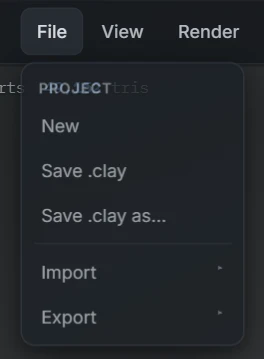
Everything comes and goes through File ▸ Import and File ▸ Export. Four interchange formats are supported in both directions: OBJ, STL, GLB and FBX.
Which format when
| Format | Best for |
|---|---|
| OBJ | The universal interchange for geometry. Every 3D tool reads it. On the Free plan, this and STL are your formats — both directions. |
| STL | 3D printing. Slicers speak STL natively. Geometry only — no colour. |
| GLB | The modern package: geometry plus your vertex paint colours in one binary file, in both directions. The format for taking painted sculpts into other tools and engines, and for bringing coloured models in. |
| FBX | The pipeline staple for animation and game tooling. |
On the Free plan, import and export are OBJ and STL; Pro unlocks all four formats in both directions. Nothing else about a file changes by plan — exported models are never watermarked.
Importing
Pick the format, choose the file, and the mesh replaces the current sculpt as a new sculptable surface. Two follow-ups cover most imports:
- Arrived as several pieces in one object? Split loose in the Layers panel separates every disconnected part onto its own layer. See Working with layers.
- Planning heavy resculpting? A Remesh gives imported topology the even flow Re:Form's brushes like best.
Colours come in with a GLB
A GLB that carries a colour on each vertex imports painted: the colours become vertex paint you can carry on painting over, and the import message says so ("with its vertex colours as paint"). A sculpt you painted in Re:Form, exported to GLB and imported again comes back with exactly the same colour on every vertex.
- Only vertex colours come in. Colour that lives in a texture image is not read, so a textured model arrives as plain clay.
- Roughness and metalness are not part of a GLB's vertex data, so they come in at the defaults. Your saved project keeps them.
- Where a file gives one point two different colours (a hard colour edge), the point takes the average.
- OBJ, STL and FBX import geometry only.
Exporting
Pick the format and the file downloads — sculpt.obj and friends, straight from the browser.
- Real-world scale rides along: the Unit mm setting under View ▸ Grid maps world units to millimetres, and exports are scaled by it, so slicers and other tools read true sizes. At the default of 1 the export uses raw coordinates. See Sculpt for 3D printing.
- Shading travels with the file. With smooth shading on in the viewport, OBJ and GLB carry averaged per-vertex normals and FBX a smoothing layer, so the mesh opens smooth in other apps. With flat shading on, the normals are left out and the file opens faceted, exactly as you saw it. STL is faceted by nature — it only stores face normals — so slicers read it the same either way.
- Want the whole multi-layer assembly in one mesh? Merge all in the Layers panel first.
Project files are separate
Interchange formats are for leaving Re:Form. Your working format is the saved project — it keeps layers, paint, settings and references intact with your account. Save while you work; export OBJ/STL/GLB/FBX when something needs to travel. See Saving, opening & autosave.